A hands-on comparison of Android WiFi signal strength apps, from NetSpot and WiFiman to Wi-Fi Analyzer and Netgear WiFi Analytics. We break down dBm readings, heatmaps, speed tests, pricing and the real limits of mobile scanners.
What Should an Android WiFi Signal Strength App Actually Do?
A good Android WiFi signal strength app isn't just about counting bars. It scans the networks around you and shows you the channel, security, and signal level for each one, then converts raw RSSI into dBm so you can actually tell the difference between a solid -45 dBm reading and a -80 dBm corner that's basically a dead zone. The better apps go further, too. They surface SSID, BSSID, and MAC address details, call out co-channel interference, and let you map coverage room by room.
Most folks searching for an Android WiFi app aren't after a technical deep dive—they just want a few straight answers. Which app is the best overall? Which one gives the most accurate readings? Which can show signal strength in dBm with clear graphs? And which will actually test WiFi speed and coverage across a home or office? Those four questions drive most of the search demand, and they overlap more than they seem to. But here's the catch: the tools people lump together aren't interchangeable. A WiFi signal strength meter, a channel scanner, a site survey tool, and a heatmapper each do a different job, even though they all deal with the same radio signals. A signal strength meter tells you how strong or weak a connection is at one spot. A channel scanner helps you spot congestion and pick a cleaner channel. A site survey tool walks you through mapping coverage over a whole space, and a heatmapper turns that data into visual maps. Some apps cover one of these roles, others cover several, and a few blur the lines entirely. That's why it pays to figure out which job you actually need done before you start comparing brands, ratings, and price tags.
One thing I keep coming back to: most of the apps marketed as "spectrum analyzers" on mobile aren't actually spectrum analyzers at all. They're WiFi scanners or channel analyzers. What they really do is show you the WiFi networks around you and how the channels are being used — they can't pick up non-WiFi interference from things like microwave ovens, wireless cameras, or Bluetooth devices. So if your problem is a noisy 2.4 GHz band rather than a crowded channel, don't expect your phone to point the finger at whatever's causing it.
Top Android WiFi Analyzer Apps Compared
The Android WiFi app market isn't just one big pile of lookalikes—it actually breaks down into three fairly distinct tiers. At the top, you've got full survey suites built for people who need real data: heatmaps, exports, multiband support. The middle tier is all those free scanners that handle quick channel checks without costing you anything. Then there's the bottom tier of lightweight home tools—the kind you open once to figure out why the bedroom streaming stick keeps buffering. NetSpot for Android anchors that first tier, and the numbers back it up: a 4.9 rating drawn from 215 user reviews on NetSpot's own page plus 231 reviews on its product page, with 200K users overall. It runs on Android 8.0 or newer and covers 802.11a/b/g/n/ac/ax across the 2.4, 5, and 6 GHz bands, so it'll work with just about any router you're likely to own today—including newer 6 GHz gear that cheaper scanners often miss.
| Tier | What It's For | Example | Key Specs |
|---|---|---|---|
| Full survey suite | Heatmaps, data export, multiband analysis | NetSpot for Android | 4.9 rating (215 reviews on NetSpot's page; 231 on its product page); 200K users; Android 8.0+; 802.11a/b/g/n/ac/ax; 2.4/5/6 GHz |
| Free scanner | Quick channel and signal checks at no cost | WiFiman, Wi-Fi Analyzer | WiFiman: 4.7/5, released 2018, 1M+ downloads, free and ad-free; Wi-Fi Analyzer: 4.5/5 |
| Lightweight home tool | Basic room-by-room signal testing | Netgear WiFi Analytics | PCMag 4.0 (Excellent); free; 459k; Android 2.2+ |
Ubiquiti's WiFiman is free, and it's built up a solid fan base since launching back in 2018 — over 1 million downloads so far and a 4.7 out of 5 rating to back it up. It's not hard to see why people like it: no ads, no paywalls, nothing pestering you to upgrade. That's pretty rare in a category where so many apps lock their best features behind a subscription. Wi-Fi Analyzer, on the other hand, sits at 4.5 out of 5 and pulls its weight by suggesting the best channel and location for your network — which comes in handy when you suspect a neighbor's router is muscling in on yours. And then there's Netgear WiFi Analytics, which PCMag rated 4.0 (Excellent). It's free too, and at only 459k, it barely makes a dent in your phone's storage.
Here's how the main contenders stack up on the specs that actually matter.
| App | Rating | Price | Heatmaps | Requirements |
|---|---|---|---|---|
| NetSpot for Android | 4.9 | Free with in-app purchases | Yes (Survey and Planning) | Android 8.0+, 802.11a/b/g/n/ac/ax, 2.4/5/6 GHz |
| WiFiman | 4.7 | Free, ad-free | No | Deep scan, speed tests, Ubiquiti support |
| Wi-Fi Analyzer | 4.5 | Free | No | Channel and location recommendations |
| Netgear WiFi Analytics | 4.0 (PCMag) | Free | No | Android 2.2+, 459k app size |
| Wifi Analyzer Network Analyzer | 4.4 (2.8K ratings) | Subscriptions from $2.99/week | No | 49.3 MB, age rating 4+ |
Once you put these apps side by side, one pattern jumps out: heatmap generation is what separates a casual scanner from a real survey tool. Lots of Android apps will give you a live dBm reading or a nice-looking graph of nearby access points, but that only shows you the signal at the exact spot where you're standing. A heatmap takes things further. It turns a bunch of individual measurements into a visual coverage map of a whole home or office, so you can actually see dead zones, weak corners, and roaming problems instead of just guessing where they are. Within this group, NetSpot is the only app that builds real coverage maps on Android, and its predictive Planning Mode — which lets you simulate a network before you install anything — isn't offered by any competing Android WiFi analyzer app. Everyone else competes on scan depth, channel recommendations, and speed testing. That's not a knock on those tools; they just answer a different question. If all you need is to find the best channel or check whether your connection is fast enough, a scanner will get the job done. But if you need to document coverage across an entire space, you'll want a survey tool.
Key Features: dBm Readings, Graphs, Heatmaps and Speed Tests
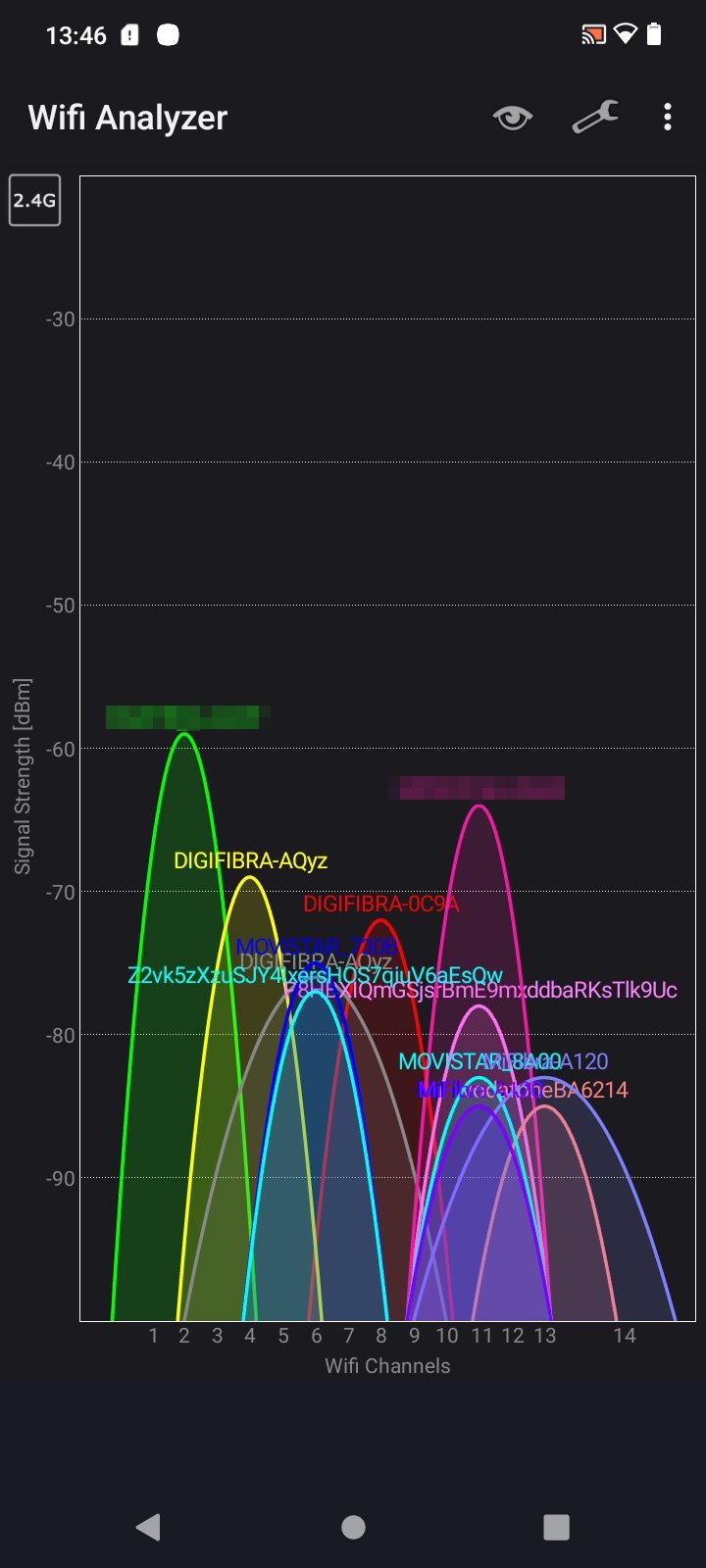
Yes, Android WiFi apps can absolutely show signal strength in dBm with graphs, and that's exactly what a lot of people are searching for. Over on r/wifi, users regularly ask for apps that list nearby networks in dBm rather than those vague signal bars, and they typically want a graph that tracks the reading over time. Take Netgear WiFi Analytics: it displayed -45 dBm at 56% on a meter divided into Poor, Good, and Best, and it also graphs nearby access points. That three-tier meter is quietly doing some translation work. A raw number like -45 dBm doesn't mean much to someone who just wants to know if the bedroom gets decent WiFi, but "Good" clicks right away. The dBm scale runs negative, and the closer to zero, the stronger the signal, so -45 dBm sits comfortably in the good range, while something like -80 dBm would indicate a weak spot. Pairing that number with a simple label, plus a graph that shows whether the signal holds steady or drops as you move around, gives you a practical picture without making you memorize the scale.
NetSpot does more than your average Android WiFi analyzer. It splits its toolkit into three modes, each built for a different stage of the job. Inspector is the quick-look option — it pulls together details about the networks around you, so you can see what you're dealing with before you change anything. Survey takes that a step further and maps real-life WiFi measurements onto a floor plan, which is what turns a pile of dBm numbers into something you can actually read. Planning flips the whole process around: instead of measuring an existing network, it lets you design and simulate one before it's even installed. That predictive side handles heatmaps of Signal Level and Signal-to-Interference Ratio, and you can upload a floor plan, scale it by entering the real distance between two known points, and add walls, windows, and doors while specifying what they're made of. And once a survey is done, the heatmaps you get cover Signal level, SIR, and SNR.
Speed testing is the other thing people really care about. WiFiman gives you detailed speed tests, and it stores the results so you can compare them over time — which is handy when you want to prove that a tweak actually made a difference. NetSpot for Android also has internet speed testing, and on top of that you can export your data to a desktop for a closer look. Netgear WiFi Analytics keeps things much simpler: there's a Home Testing screen with preset rooms like Living Room, Bedroom 1, and Office, so you can just walk around and jot down the signal strength in each one.
Free vs Paid: Pricing and In-App Purchases
Pricing on Android is messier than the star ratings suggest, because several apps are free to download but gated behind subscriptions. NetSpot for Android is free to install but requires in-app purchases to unlock all features, including NetSpot Plus. WiFiman is completely free and ad-free, and Netgear WiFi Analytics is free but deliberately basic. Wi-Fi Analyzer is also free.
On Android, most of the apps in this roundup lean toward a straightforward download — or at most a single unlock fee. Over on the App Store, though, subscriptions tend to show up far more aggressively, and Wifi Analyzer Network Analyzer by LE NGUYEN QUANG PHUOC is a good example of how that plays out. The app sits at 2.8K ratings with a 4.4 out of 5 average, carries a 4+ age rating, and takes up 49.3 MB of space. Where it gets interesting is the pricing structure: you can pay $2.99 for a single week, $5.99 for one month (which comes with a three-day free trial), or $14.99 for lifetime access. That spread gives you a sense of the trade-off — short-term access is cheap enough to test the waters, but the weekly rate adds up fast if you forget to cancel, while the lifetime option only makes sense if you plan to keep using it long term. Either way, it's a reminder that "free" WiFi tools and subscription-based ones can feel like completely different products, even when they do many of the same core jobs.
| App | Model | Price Points |
|---|---|---|
| WiFiman | Free | $0, no ads |
| Netgear WiFi Analytics | Free | $0 (MSRP Free), basic feature set |
| NetSpot for Android | Freemium | In-app purchases unlock all features |
| Wifi Analyzer Network Analyzer | Subscription | $2.99/week, $5.99/month, $14.99 lifetime |
One compliance detail worth remembering before you tap "subscribe": most app stores treat subscriptions as auto-renewing by default, meaning the charge repeats unless you cancel at least 24 hours before the end of the current billing period. Miss that window and you're paying for another week or month, whether or not you opened the app. So it pays to match the billing model to your actual habit. If you're the type who runs a one-time site survey — say, after moving into a new house or rearranging a home office — a lifetime unlock or a genuinely free app will almost always beat a weekly subscription you forget to cancel. A $2.99 weekly plan only makes sense if you're testing networks regularly; for a single afternoon of checking dBm readings room by room, it's money down the drain.
| App | Pricing Model | Typical Cost |
|---|---|---|
| WiFiman | Completely free, ad-free | $0 |
| Netgear WiFi Analytics | Free (MSRP Free) | $0 |
| NetSpot for Android | Free with in-app purchases (NetSpot Plus) | Varies by unlock |
| Wifi Analyzer Network Analyzer | Subscription paywall | 1 week $2.99; 1 month $5.99 (3-day free trial); lifetime $14.99 |
Which App Is Most Accurate for Testing WiFi Signal Strength?
Accuracy on a phone is limited by the phone, not just the app. Every Android app reads the same radio hardware, so differences come from sampling frequency, averaging, graph resolution and how clearly the data is presented. NetSpot's own list puts NetSpot for Android first, and its combination of Inspector, Survey and Planning modes plus heatmaps and speed testing on Android 8.0+ is the most complete package in this comparison.
WiFiman is the strongest free alternative, with deep scanning and speed tests that store and compare results, plus excellent support for Ubiquiti devices. Wi-Fi Analyzer is praised for recommending the best channel and location, which is often the fastest fix for a congested network. Netgear WiFi Analytics is easy to navigate and handy for optimizing home WiFi, though PCMag's 4.0 rating reflects that it is a bare-bones tool rather than a professional instrument.
Reviews of Wifi Analyzer Network Analyzer are a useful warning. One user says it does not tell WiFi signal strength, another says it does not analyze the network for coverage strength or heat maps, and a third says it is paywalled and needs a subscription for anything useful. Ratings alone do not tell you whether an app does the specific job you need.
How Do You Run a Proper WiFi Survey on Android?
A proper survey starts with a map. In NetSpot, take a picture of the area you are surveying and load it into the app, then scale the map by entering the real distance between two known points. Walk the space and take as many measurements as possible, because more sample points produce more accurate data. When you finish, analyze the collected data with detailed visual heatmaps showing signal level, SIR and SNR.
For a simpler home check, Netgear's approach works well: move throughout the home and test signal strength in every room, using the preset room list as a checklist. That record is exactly what you need to decide where to place a wireless extender, and it takes only a few minutes per room.
Channel advice is the other half of the job. If one channel looks crowded, adjust the channel settings, but remember that depending on the country there are a limited number of channels available for the 2.4 and 5 GHz bands. A channel interference view that shows the best and worst channels, like the one in Netgear WiFi Analytics, turns that decision into a simple pick rather than a guess.
What Are the Limits of Mobile WiFi Analyzer Apps?
The biggest limitation is interference detection. ChannelPro Network notes that most mobile spectrum analyzer apps are really WiFi scanners or channel analyzers: they visualize WiFi networks and channel usage but cannot identify non-WiFi interference from microwave ovens, wireless cameras, Bluetooth equipment and similar devices. If your throughput drops whenever a nearby appliance runs, a phone app will not confirm it.
The second limit is scope. Netgear WiFi Analytics is free, small and easy to use, but it is a basic tool and not intended for professional WiFi deployments. WiFiman, despite its deep scanning and excellent Ubiquiti support, cannot create WiFi heatmaps, and recent updates made the spectrum display noticeably smaller while IP addresses no longer work as clickable links. Those are minor usability issues, but they matter in daily use.
The third limit is commercial. Some apps are paywalled or ad-supported, and subscriptions auto-renew unless turned off at least 24 hours before the end of the current period. For professional work, dedicated platforms such as Ekahau, TamoGraph, inSSIDer for Office, WiFi Explorer Pro from Intuitibits and NetSpot for Windows remain the reference tools, with Android apps serving as quick field companions rather than replacements.
How to Pick the Right App for Your Network
Match the app to the job. If you want to know why video calls stutter in one room, a free scanner like WiFiman or Wi-Fi Analyzer plus a room-by-room dBm check will usually answer it. If you need documented coverage maps, signal-to-interference ratio analysis or a network design before hardware is installed, NetSpot for Android is the only option in this group with Survey and Planning heatmaps.
If you already run Ubiquiti gear, WiFiman's deep scan and device support make it the obvious default, especially since it is free and ad-free. If you want the simplest possible home tool, Netgear WiFi Analytics is small, free and navigable, as long as you accept that it is basic. And if an app asks for a weekly subscription before showing you anything useful, treat the reviews as your due diligence.
Whichever you choose, plan for repeat measurement. Roaming behavior, dead zones and blind spots change when furniture moves, neighbors add access points, or you switch bands. A short survey repeated after each change tells you more about your network than any single reading, and it is the habit that separates a good signal from a reliable one.
This article is based on published app listings, vendor documentation and third-party reviews available at the time of writing, and it is not investment advice.
Frequently Asked Questions
Which Android app is best for measuring WiFi signal strength?
NetSpot for Android tops its own comparison, offering Inspector, Survey and Planning modes plus WiFi heatmaps and speed testing on Android 8.0 or newer. WiFiman is a free, ad-free alternative with deep scanning and stored speed tests, while Wi-Fi Analyzer is widely praised for recommending the best channel and location for your network.
Can Android WiFi apps show signal strength in dBm with graphs?
Yes. Users on r/wifi specifically ask for apps that display nearby networks in dBm rather than bars, ideally with graphs. Netgear WiFi Analytics showed a reading of -45 dBm at 56% on a meter split into Poor, Good and Best, and it graphs nearby access points so you can compare channels at a glance.
Do mobile WiFi analyzer apps detect non-WiFi interference?
Generally no. ChannelPro Network notes that most mobile spectrum analyzer apps are really WiFi scanners or channel analyzers: they visualize WiFi networks and channel usage but cannot identify non-WiFi interference from microwave ovens, wireless cameras, Bluetooth equipment and similar devices. For that kind of diagnosis you need dedicated hardware.
Are Android WiFi analyzer apps free?
It varies. WiFiman is completely free with no ads, and Netgear WiFi Analytics is free but basic. NetSpot for Android requires in-app purchases to unlock all features, and some apps such as Wifi Analyzer Network Analyzer use subscriptions from $2.99 weekly to $14.99 for a lifetime unlock.
Are Android WiFi analyzer apps free or paid?
Pricing varies. WiFiman and Netgear WiFi Analytics are completely free, while NetSpot for Android is free to install but requires in-app purchases to unlock all features. Some apps like Wifi Analyzer Network Analyzer use subscriptions from $2.99 per week to $14.99 lifetime, so check reviews and auto-renewal terms before committing.