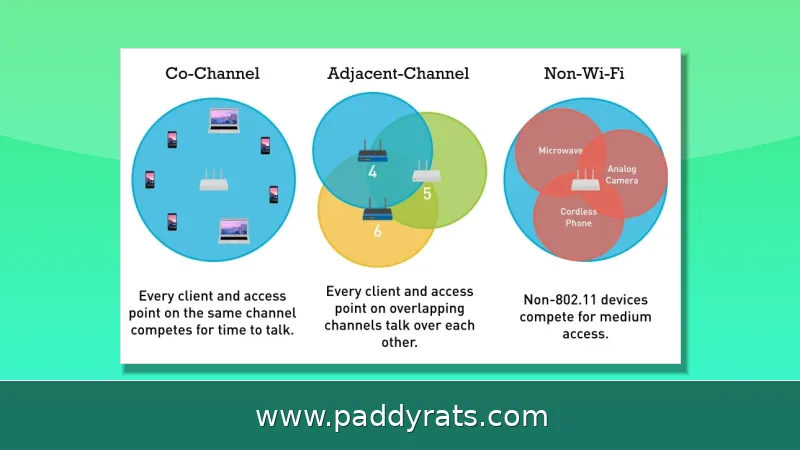
Neighbor routers on the same or overlapping channels steal airtime from your network, and the fix is usually a manual channel change rather than a new router. Here is how to diagnose the interference and reclaim your Wi-Fi speed.
Why Does Your Neighbor's Router Slow Down Your Wi-Fi?
My apartment Wi-Fi taught me this the hard way. At 10 a.m. my speeds were fine; by 9 p.m. they were basically unusable. Nothing had changed on my end — the only difference was how many neighbors were home. Wi-Fi runs on radio waves in the 2.4 GHz and 5 GHz bands, and when several routers are fighting for the same airtime, your devices can't tell your router's packets apart from everyone else's. So packets get retransmitted, bandwidth goes to waste, and your router burns processing power on collisions instead of actual data.
The 2.4 GHz band is usually the main offender. It reaches farther through walls than 5 GHz does, but that same reach makes it much easier for interference to mess with it. Here in the US, 2.4 GHz routers get eleven channels to pick from — except only three of them, 1, 6, and 11, don't overlap with each other. The worst interference tends to come from networks sitting within about 30 to 50 feet of yours, which explains why apartment buildings, offices, and shopping centers deal with the heaviest congestion. And since interference tracks your neighbors' activity, business districts often get some relief on weekends and holidays.
How to Tell If Neighboring Networks Are Causing Interference
Co-channel interference doesn't look like a dead router. A dead router just stops working. Interference is sneakier: your connection drops in and out, speeds crawl during peak hours, video streams stutter, range shrinks, and devices disconnect and reconnect over and over. You'll also notice latency climbing and packets getting lost along the way. The telltale sign is that it follows your neighbors' schedules, not your hardware. So instead of failing all the time the way a broken router would, it comes and goes depending on the time of day.
Start by downloading a Wi-Fi analyzer app on your phone or laptop. It'll show you all the networks nearby, how strong their signals are, and which channels they're sitting on. Your router's admin panel is worth checking too, since it usually displays channel utilization and often has a built-in scanner. Then run speed tests at a few different times of day. If your speeds swing a lot during peak hours, interference is probably the culprit. And if things speed up when you walk closer to the router, that confirms you're dealing with competing signals rather than a router that's about to die.
It's also worth ruling out causes that have nothing to do with your network. For example, a microwave oven can cut your Wi-Fi speeds in half, since it runs on the same 2.4 GHz frequency your router uses. Cordless phones and baby monitors are guilty of this too—they often sit on 2.4 GHz as well. Then there's the physical stuff: metal and water absorb Wi-Fi signals, so a mirror with a metal backing, a fish tank, or a thick wall can all drag down your coverage. Bluetooth is a bit different. It's low-powered and built not to get in Wi-Fi's way, but if you've got a room full of active Bluetooth devices, they can still add some noise to the mix.
| Symptom | Likely Cause | Quick Check |
|---|---|---|
| Slow only in the evening | Neighbor channel congestion | Speed test at noon vs. 9 p.m. |
| Slow at all hours | Hardware or ISP problem | Test a wired Ethernet device |
| Speed drops near the kitchen | Microwave on 2.4 GHz | Test with the microwave off |
| Weak signal in one room | Metal, water, or thick walls | Move the router a few feet |
| Frequent reconnects | Overlapping channels nearby | Scan channels with an analyzer app |
Which Channels to Use on 2.4 GHz and 5 GHz
On 2.4 GHz, stick to channels 1, 6, or 11, and keep the channel width at 20 MHz. Every other channel overlaps with the ones next to it, and bumping the width up to 40 MHz (common on older Wireless-N setups) is almost never a good idea, since it ends up colliding with just about everything around you. Trading a bit of channel width for a cleaner signal is usually the smarter move — reliability matters more than whatever throughput number you see on paper.
Once 2.4 GHz gets too crowded, your best bet is to move whatever devices you can over to the 5 GHz band, or plug them in directly with Ethernet. The nice thing about 5 GHz is that it has way more channels to work with, and its range is shorter, so your neighbor's signal usually doesn't reach you as easily. If you've got a modern mesh setup like the TP-Link Deco XE75, it can run 160 MHz channel widths on 5 GHz, and channels such as channel 36 tend to be wide open in residential buildings. One thing to keep in mind, though: the higher 5 GHz channels don't behave the same everywhere, so before you start tweaking anything, make sure the correct country is set in your router firmware.
| Band | Best Channels | Channel Width | Notes |
|---|---|---|---|
| 2.4 GHz | 1, 6, or 11 only | 20 MHz | Only non-overlapping options in the US |
| 2.4 GHz (avoid) | 2–5, 7–10 | 40 MHz | Overlaps neighbors, worsens interference |
| 5 GHz | 36 and other DFS-free channels | 80–160 MHz | Shorter range, less neighbor traffic |
Step-by-Step: Scanning and Changing Your Router Channel
Before you do anything else, try the easy stuff first: power-cycle or reset your router and see if your speeds bounce back. If that doesn't help, pull up a Wi-Fi analyzer app and take note of which channels your neighbors are on and how strong their signals come through. From there, log into your router's admin panel, head to the wireless settings, and turn off auto channel selection. Here's the thing—most routers are pretty bad at picking channels on their own. The auto mode reacts slowly and tends to settle on a crowded channel instead of finding you a clear one.
Your best bet is to manually set your 2.4 GHz band to channel 1, 6, or 11 — pick whichever one looks the least crowded in your scan — and lock the channel width at 20 MHz. If you're running OpenWrt or LuCI, though, take care of one thing first: set the correct country under Network > Wireless > Edit Wi-Fi before you touch anything else. That matters because the regulatory settings determine which channels and power levels your radio is actually allowed to use. Once you've saved your changes, reconnect your devices and run another speed test at the same time of day so you're comparing apples to apples.
One counterintuitive tip from my own testing: avoid the router's USB port, especially on 2.4 GHz. Some routers are vulnerable to interference from attached USB devices, and range can drop dramatically once a drive or printer is plugged in. If you need shared storage, put it on a separate device or use a wired connection to the router instead.
Other Fixes: Transmit Power, Channel Width, and Wired Options
Lowering your router's transmit power sounds backwards, but it can help. If your signal is so strong that it reaches well into your neighbors' apartments, you are both competing on the same channels; dialing power down can reduce how much of their traffic interferes with yours. High-gain antennas are the opposite play — they push your signal farther so neighbors have to deal with your interference instead. Adding more access points can also drown out outside interference by keeping your devices connected to a closer, stronger radio.
Placement matters as much as settings. Reposition the router away from thick walls, heavy furniture, metal objects, and water, and use Wi-Fi extenders to close dead zones rather than cranking power to maximum. If your building offers bulk fiber from an ISP like Spectrum, wiring your most important devices — desktop, TV, console — removes them from the wireless fight entirely.
| Fix | Best For | Trade-off |
|---|---|---|
| Manual channel change | Most interference cases | Needs occasional re-scanning |
| 20 MHz channel width | 2.4 GHz reliability | Lower peak throughput |
| Lower transmit power | Dense apartments | Smaller own coverage area |
| High-gain antennas | Single-family homes | May increase your own interference |
| Wired Ethernet | Desktops, TVs, consoles | Cable runs and adapters |
When to Talk to Your Neighbor About Their Wi-Fi Settings
Sometimes the cleanest fix is a friendly conversation. Approach neighbors casually, explain that your Wi-Fi slows down in the evening, and offer to help them check their settings. Interference is not one-way: a router stuck on channel 3 with a 40 MHz width hurts both networks, so framing it as a shared problem usually gets a better response than a complaint.
If they are willing, suggest channel 1, 6, or 11 on 2.4 GHz and no extra-wide channels. Tools like NetAlly analyzers or the Wi-Fi analyzer app on your phone make the overlap visible in seconds, which is more convincing than an abstract explanation. That said, changing your own channel is usually faster and more reliable than waiting on a neighbor, so treat the conversation as a bonus rather than your primary plan.
Forums like GL.iNet's community and the Ubiquiti community are full of similar stories, and the pattern is consistent: people who scan first, pick a clean non-overlapping channel, and stop trusting auto-select get their speeds back. Hardware failures, by contrast, cause consistent problems regardless of time of day, and ISP issues affect Ethernet-connected devices too — so if wired devices are also slow, look beyond your neighbor before you touch the router.
Frequently Asked Questions
How do I stop my neighbor's Wi-Fi from interfering with mine?
Scan nearby networks with a Wi-Fi analyzer app, then manually set your router to a less crowded channel. On 2.4 GHz, use only channel 1, 6, or 11 at 20 MHz width. Moving devices to the 5 GHz band, lowering transmit power, or using wired connections also reduces interference and restores stable speeds.
Which 2.4 GHz channels should I use to avoid overlap?
The 2.4 GHz band has only three non-overlapping channels: 1, 6, and 11. Using any other channel, or widening to 40 MHz, overlaps your neighbors and worsens interference for everyone. Set channel width to 20 MHz for better reliability, even though peak throughput drops slightly.
Why does my Wi-Fi slow down in the evening?
Interference from neighboring networks peaks during evening hours in residential areas and during business hours in offices. Multiple routers compete for the same channels, forcing retransmissions and reducing available bandwidth, so speeds drop when your neighbors are online and recover when they disconnect.
Should I ask my neighbor to change their Wi-Fi channel?
You can approach neighbors casually, explain the issue, and offer to help adjust their settings. Interference is not one-way, so a wrong channel harms both networks. However, changing your own channel is usually faster and more reliable than depending on a neighbor to act.