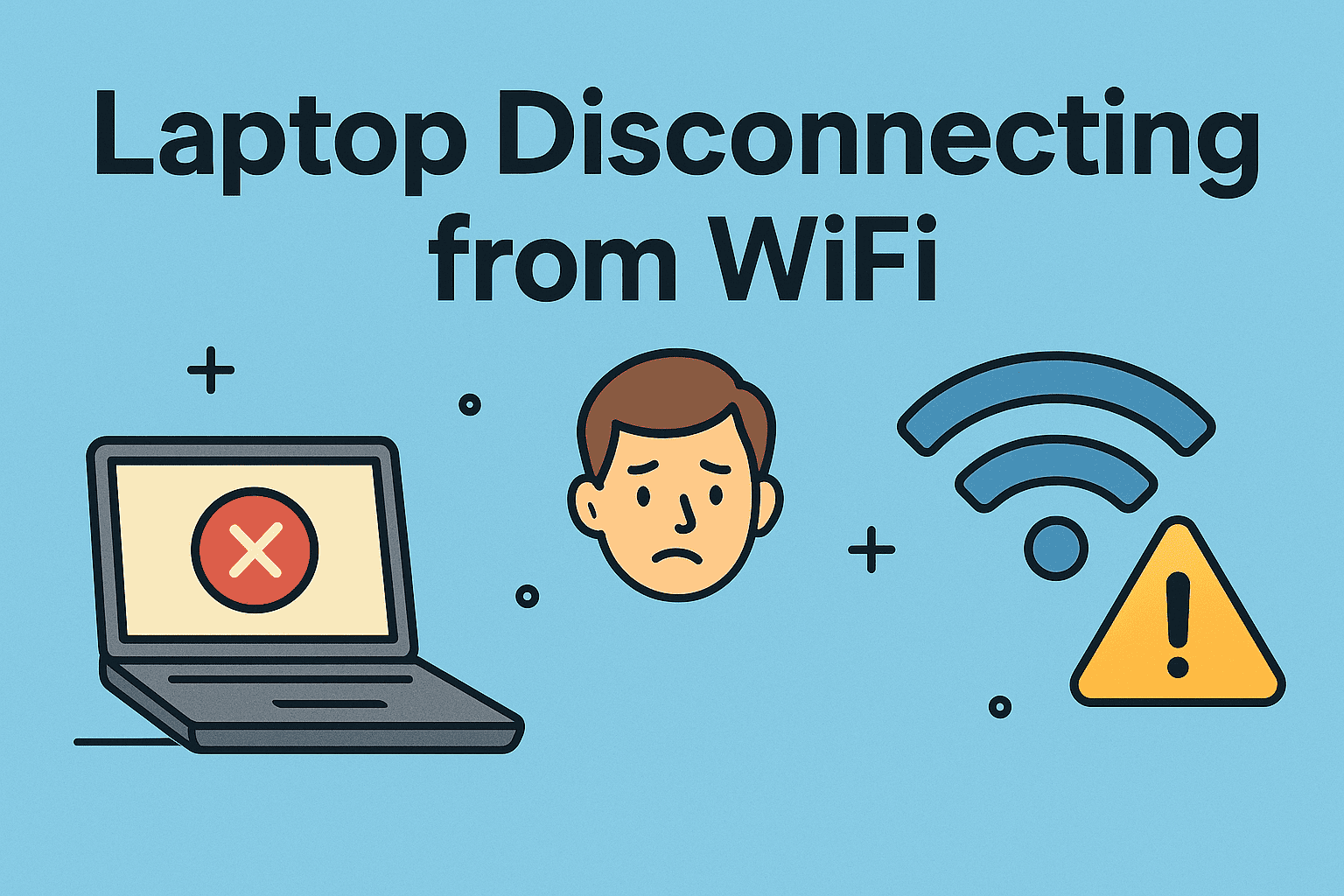
A laptop that keeps losing Wi-Fi while phones and tablets stay online is almost always a laptop-side problem, not a router problem. This 2026 guide walks through the driver, power-saving, and router fixes that actually stop the drops.
Why Does Your Laptop Keep Dropping Wi-Fi?
When your laptop keeps dropping Wi-Fi but every other device at home stays connected just fine, the problem is usually the laptop itself, not the router. From my own experience troubleshooting this, three culprits come up again and again: outdated or corrupted Wi-Fi drivers, power management settings that shut off the adapter to save battery, and third-party firewall or antivirus software that briefly cuts the connection. Since your phone and tablet never lose signal, the router is clearly doing its job, which means the issue is most likely the wireless LAN card or how Windows is configured to handle it. Microsoft Q&A threads tell the same story going back to August 2021 and as recently as September 2024: connections drop every 5 to 10 minutes, occasionally hold steady for an hour, and one user got so fed up he restarted his PC more than 20 times a day.
The timing of those drops is actually a very useful clue that you have. If your work laptop drops Wi-Fi on a known schedule, 5 minutes then 10 minutes with the longest portion being about an hour long, it is usually for background scan / power savings purposes and not just because the radio flew down. For instance, Windows is permitted to turn off the wireless adapter for power saving, while the Scan Valid Interval determines how long an access point will sleep before seeking a better one--a low number signifies frequent scanning and at once it could bump you offline. On the other side of interference. The 2.4GHz band is chock full of microwaves, garage door openers and baby monitors while the stone, metal, tile — even water sitting between you and your router saps signal strength. It is a good rule of thumb: if the problem occurs only at home, and does not manifest itself over university or office networks you can rule out that your network adapter has gone bad; it may just be local interference (or possibly a router setting).
If you've spent any time scrolling through Microsoft Q&A, the HP support forums, the Dell community, or Reddit's r/techsupport, you'll notice something pretty quickly: complaints about a laptop dropping Wi-Fi tend to fall into a handful of familiar patterns instead of a thousand totally different problems. Some people say their connection dies every 5 minutes, then every 10, with the longest stretch without a drop lasting about an hour. Others get kicked off after roughly 8–10 minutes. One particularly frustrated owner restarts their PC more than 20 times a day just to stay online. A few users see the network list go completely blank, while others run into an "association failed" message or a troubleshooter warning about the Wi-Fi access point. And in a lot of these threads, the phone and tablet on the same network are working just fine — which is a pretty good sign the router isn't the problem. Figuring out which pattern matches your machine can save you a ton of trial and error before you start messing with settings.
Quick Fixes to Try First: Restart and Reconnect
The boring stuff, and do it right before you start poking around in drivers or advanced settings. Start by restarting the laptop, followed then doing a power disconnect of both your router and modem for exactly 60 seconds before plugging them back up in. I know it sounds like a cliché, but that 60 seconds really does matter: once the capacitors are drained entirely, only then can the router forget its memory of an old session and start a fresh negotiated connection from scratch rather than retaining some stale session. As you wait, take a look at the laptop to ensure that Airplane Mode is not enabled. A stray key combo can quietly turn off the wireless radio, and the behavior is identical to what you´re chasing—no Internet, no Network List. Nothing! Resist the temptation to skip this step because two minutes of unglamorous work here can save you an hour later down the road when it comes time to troubleshoot drivers.
If a simple restart didn’t stop the drops, forget your network and reconnect from scratch. In Settings, head to Network and Internet > Wi-Fi > Manage known networks again select Forget on the home network. Sign back in with your password and allow Windows to recreate the profile. It seems ridiculously simple, but a corrupted profile is one of the leading causes of an endless cycle of failed authentication and takes less than 30 seconds to completely rebuild. Somehow, there is a whole pile of connection data in that profile and when it goes bad your laptop may be attempting to authenticate over an out date password even while the router still works fine with another device. One thing to watch for: if your list of available networks looks like it has no entries at all rather than just not showing you your home network, that leans more toward a stalled adapter and does less quickly indicate a bad profile. Otherwise, instead of a restart you may try a full shutdown since it forces the hardware to switch off completely.
The built-in Windows Network troubleshooter is still worth running in this case, if only to often do the troubleshooting part of the process. Consider it not as being a repair tool, but rather like a test that shows you the locus of your problem. Open it through Settings >> Network and Internet >> Status, let the scan continue. If it returns with association failed or something wrong with the Wi-Fi access point well that is a bit more descriptive and tells you somthing useful - your laptop can reach the router, start the handshake but then both end up stalling before making an actual connection. In other words, the wireless adapter is alive and pinging -- it's the negotiation that keeps failing. That distinction is important because that directs you toward driver and channel fixes rather than one towards replacing hardware. So before you pay out for a new card or USB adapter, use this message as your sign to continue software debugging.
How to Disable Network Adapter Power Saving
This is my first recommended fix because it takes a minute and costs nothing to do. So here is what's happening: Windows is allowed to turn down / off your Wi-Fi adapter any time it thinks the card isn't being used, all in the name of battery life. On paper that sounds harmless. That permission, in practice on some machines is exactly what triggers the intermittent drops reported by folks who see their connection disappear for a few seconds and come back quietly. To do so, launch Device Manager -> expand Network adapters -> right-click your Wi-Fi card and click Properties. Go to Power Management tab uncheck Allow the computer to turn off this device to save power — click OK and restart your laptop This specifically ranks among the most advice Microsoft advisors and community answers consistently recommend for random Wi-Fi drops on Windows 10 / Windows 11, which is why it should go at the top of your list as opposed to subsequent.
Since you're already in Device Manager, don't just stop at the Power Management tab. Click over to the Advanced tab for the same adapter and see what else is in there. Two settings are worth checking: a power-saving option and a roaming-aggressiveness (sometimes labeled roaming sensitivity) option. If either one shows up, set it to a performance-oriented value — something like "Maximum Performance" for power saving, or a higher, more aggressive level for roaming. The tricky part is that these labels aren't standardized, so a MediaTek Wi-Fi 6 MT7921 card — the chip you'll find in machines like the ASUS Zephyrus G14 and Lenovo IdeaPad Gaming 3 — may use completely different wording than an Intel or Qualcomm adapter. If you can't find an equivalent option, that's normal; not every vendor exposes these controls. One more thing: if your laptop is really a desktop replacement that stays plugged in most of the day, you can also switch the overall power plan to High Performance, which tends to keep the wireless radio from being throttled. Just be careful with the Ultimate Performance plan on cheaper, low-end laptops — it keeps the fans spinning constantly and drains the battery fast, so the extra stability may not be worth the noise and heat.
Updating or Rolling Back Your Wi-Fi Driver
Outdated or corrupted drivers are the second most common cause of a laptop that keeps losing its Wi-Fi connection, right behind power-saving settings. The fix sounds easy enough, but where you get the driver from really matters. Go to your laptop manufacturer's support page — Dell, HP, Lenovo, ASUS, whoever built your machine — rather than letting Windows Update grab something for you. Vendors often ship tweaked drivers that fix bugs the generic Microsoft version never addresses, which is exactly why so many people watch their drops vanish after a manual install. Once you've got the right file, install it, restart the laptop, and give it a full day of normal use before deciding whether it worked; a quick five-minute test won't tell you much when the disconnects hit every 8–10 minutes or only show up under load. Driver Easy's guide, last updated about a year before this writing, and ITarian's July 2025 walkthrough both describe this same manual process, and both stress the same point: match the driver to your exact adapter model. If your laptop runs a MediaTek Wi-Fi 6 MT7921, for instance, don't grab a generic Intel package and hope for the best.
Most of the time, it is the newest driver that causes problem If drops started immediately after an update, roll back instead: open Device Manager→ right-click the adapter → Properties → Driver tab → Roll Back Driver. The situation has seen Surface Pro owners place the blame at Windows updates for similar behaviour, and a rollback is currently the quickest way to prove or refute that theory. Wherever no rollback option is available, obtain the prior version from the vendor and perform a manual installation.
For more severe cases, uninstall the adapter altogether and ensure that you tick the box for removing driver software, then restart Windows to have it reinstall a fresh instance of it. Run the system file checker by right-click on Start > select Command Prompt (Admin) and typing in sfc /scannow. Even if the driver is fine, bad system files can break networking components, and it repairs them automatically in a scan.
Router-Side Fixes: Firmware, Channels, and Placement
Your router deserves the same attention as the laptop. Start by updating its firmware through the admin page, because manufacturers patch stability bugs there. Then change the Wi-Fi channel: Microsoft advisors suggest trying 1, 6, or 11 on the 2.4GHz band, which are the only three channels that do not overlap. Switching to 5GHz reduces interference further since most household devices still sit on 2.4GHz. Keep in mind that some network providers lock down channel settings, so if the option is grayed out, that is not a fault on your end.
Placement matters more than most people expect. Centralize the router, keep it off the floor, and move it away from large electronics. Stone, metal, tile, and water all weaken signal, which is why a router tucked behind a fish tank or inside a metal cabinet performs so poorly. Bluetooth accessories can also interfere; one user in the Microsoft Q&A threads traced a similar issue to a Bluetooth mouse before replacing it.
The comparison below reflects the trade-offs that come up repeatedly in community troubleshooting, and it is the fastest way to decide which band your laptop should use.
Advanced Fixes: Network Reset, Scan Valid Interval, and SFC
When the basics fail, go deeper. The Scan Valid Interval setting controls how long the adapter waits before scanning for a better access point, and a higher value means less scanning and fewer interruptions. In Device Manager, open your adapter's Advanced tab, find Scan Valid Interval, and set it to 120. This is not available on every card, so treat it as a bonus fix rather than a guaranteed one. Similarly, disabling 802.11ax in the Advanced tab can stabilize older routers that struggle with Wi-Fi 6 negotiation, though the option may not exist on all adapters.
A full Network Reset is the nuclear option and it works surprisingly often. Go to Settings, Network and Internet, then Advanced network settings, and choose Network reset. Windows removes and reinstalls every network adapter and restores networking components to their original settings, so you will need to re-enter your Wi-Fi password afterward. Before that, you can also flush the DNS cache and renew your IP address from Command Prompt using ipconfig /flushdns, ipconfig /release, and ipconfig /renew, or reset the network stack with netsh commands.
If drops persist, switch your DNS to Google's public resolvers at 8.8.8.8 and 8.8.4.4. A VPN such as Proton VPN can also cause intermittent disconnects, so disconnect it for an hour and see whether the problem disappears. When nothing works, a USB Wi-Fi adapter is the practical fallback; community answers on Microsoft Q&A and ITarian both list it as a reliable workaround, and some users report it as the only option that held a stable connection.
2.4GHz vs 5GHz and Router Buying Trade-Offs
Band choice is a genuine trade-off rather than a simple upgrade. Use the table below as a quick reference when deciding how to configure your network or whether your current router is the bottleneck.
| Factor | 2.4GHz | 5GHz |
|---|---|---|
| Range | Longer, better through walls | Shorter, struggles with obstacles |
| Speed | Lower | Higher |
| Interference | High: microwaves, baby monitors, garage door openers | Low |
| Best for | Far rooms, older devices | Devices near the router needing bandwidth |
| Channel advice | Use 1, 6, or 11 only | Auto or least-crowded channel |
Router hardware sets a hard ceiling on how many devices stay connected smoothly. Budget routers may handle only two devices at once, while better models manage around twelve, which explains why a household full of phones, laptops, and smart plugs produces drops that a single-device test never reproduces. Mesh routers help by automatically steering each device to the optimal band. On the plan side, a 500Mbps connection is generally enough for five adults, and reserving roughly 100Mbps per person is a reasonable rule. One caveat: a router with only a Gigabit Ethernet port will bottleneck a 2Gbps plan, so match the hardware to the service you are paying for. For critical work, wired Ethernet remains the most stable option.
When It Is Hardware, and How to Prevent Future Drops
If every software fix fails, the adapter itself may be failing, and that calls for professional attention or a replacement card. Before assuming the worst, contact your ISP to check for outages or network issues in your area, and test the laptop on a different network to isolate the variable. A drop that follows the laptop everywhere points to hardware; a drop that stays at home points to your network.
Prevention is mostly routine maintenance. Update your Wi-Fi driver monthly, keep router firmware current, and schedule router reboots so memory does not accumulate over weeks of uptime. Centralize the router, keep it off the ground and away from large electronics, and disconnect unused devices so the airtime is not wasted. Use a dual-band router and move devices to 5GHz whenever range allows. None of this is glamorous, but in my experience it eliminates the majority of repeat disconnects before they start.
One last note on expectations: hardware failures are real but rarer than driver and power-management problems. Work through the software checklist first, and you will usually avoid buying parts you did not need.
Frequently Asked Questions
Why does my laptop keep disconnecting from Wi-Fi when other devices stay connected?
It usually points to a laptop-specific cause rather than the router. Common culprits are outdated or incompatible Wi-Fi drivers, power-saving settings that turn off the adapter, and aggressive firewall or antivirus software. Because other devices work fine, the fix is typically on the laptop side: update the driver, disable adapter power saving, and reset the network.
How do I stop Windows 11 from turning off my Wi-Fi adapter to save power?
Open Device Manager, expand Network adapters, right-click your Wi-Fi card, and choose Properties. Go to the Power Management tab and uncheck "Allow the computer to turn off this device to save power," then click OK and restart. This is one of the most commonly recommended fixes for random Wi-Fi drops on Windows 10 and Windows 11.
Should I change the Wi-Fi channel to fix frequent disconnections?
Yes, switching to a less crowded channel can help. Microsoft advisors suggest trying channel 1, 6, or 11 on the router, and moving to the 5GHz band reduces interference because most devices still use 2.4GHz. Note that some network providers do not allow users to change the Wi-Fi channel.
Is a USB Wi-Fi adapter a good workaround for a faulty laptop Wi-Fi card?
Yes. When built-in adapters keep dropping or are faulty, a high-quality USB Wi-Fi adapter provides a reliable alternative. Community answers on Microsoft Q&A and ITarian both list USB Wi-Fi adapters as a practical workaround, and some users report it as the only option when no software fix works.