Neighboring routers, microwaves, and crowded 2.4 GHz channels can cut your speeds in half. Here is how to diagnose interference and fix it with channel selection, band switching, and smarter router placement.
What causes WiFi interference from nearby networks?
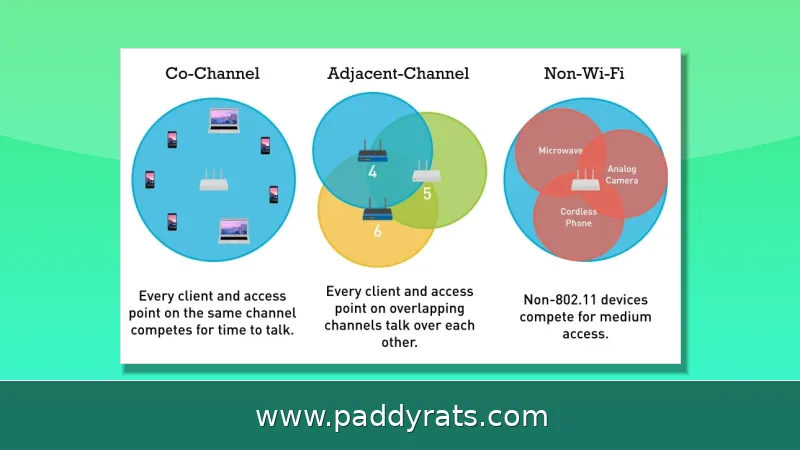
WiFi is basically radio, so when several networks are broadcasting on the same channel—or on channels that overlap—you get interference. In apartments, crowded residential neighborhoods, and offices packed with routers, every access point is fighting for the same airtime. The 2.4 GHz band is usually the biggest culprit: it only gives you a few usable channels, and networks sitting within 30 to 50 feet of each other tend to interfere the most. Once multiple access points land on one channel, WiFi's listen-before-talk rule, CSMA/CA, makes them wait their turn. All that extra coordination leads to more retransmitted packets and slower speeds for everyone.
Distance and physics play a role here, too. If two access points have to split a 10 Mb/s throughput, they end up with roughly 5 Mb/s each; add a third, and that drops to about 3.3 Mb/s per AP. Signal strength itself is measured in dBm, and the scale runs from -30 dBm at the top end down to -90 dBm, which is about the weakest signal you can still use. Noise usually falls somewhere between -90 dBm (moderate) and -98 dBm (almost nothing). The difference between your signal and that noise floor is the signal-to-noise ratio, or SNR, and that number is what ultimately determines whether your connection holds up or falls apart.
It's not just other routers you have to worry about—plenty of everyday gadgets are throwing noise into the same airspace. Take microwaves: they run on the same 2.4 GHz frequency as your WiFi, and while one's heating up dinner it can slash your speeds by as much as half. Cordless phones, baby monitors, and Bluetooth devices all hang out in the ISM band too. Bluetooth, for its part, hops between 2402 and 2480 MHz in 1 MHz steps, and because it's low-powered and built with frequency hopping, it's not really designed to get in WiFi's way. Still, fill a room with enough active Bluetooth gadgets and you're adding real RF noise—noise your router has to listen through and work around.
How do you identify interference from neighboring networks?
You'll know something's off when your speeds are all over the place, connections keep dropping, video streaming stutters, and your range shrinks — especially during the evening rush. If things suddenly get better on weekends or holidays when the offices nearby are empty, that's a strong hint your neighbors' networks are the culprit. The key difference is that interference rises and falls with your neighbors' activity, while a hardware problem stays consistent no matter what, and an ISP issue would drag down Ethernet-connected devices too.
Grab a free WiFi analyzer app and start there—it'll show you every network in range, which channel each one is using, and how strong the signal is, so you can tell pretty quickly who's crowding your channel. Walk around your place while you scan, room by room, and note where the signal drops off or dies completely. If you want to dig deeper, pros use surveying tools like AirMagnet or Ekahau in both passive and active modes, along with spectrum analysis, which can pick up non-WiFi interference that regular apps just can't detect.
Keep in mind that some sources of interference come and go, which makes them tough to track down. Radar, satellite links, and power lines can disrupt WiFi in short bursts that a WiFi-only tool simply won't catch. If your scans look clean but the problems keep happening, try logging the times and days when your speeds drop. Those patterns often tell you whether the culprit is a neighbor's router, a microwave, or something outside your walls.
Which WiFi channel and frequency band should you choose?
On 2.4 GHz, you've really only got three clean channels to work with: 1, 6, and 11 here in the U.S. (Europe gets 1, 7, and 13 instead). Your router technically has eleven channels to choose from on this band, but the ones in between overlap with each other, which leads to packet collisions and a lot of retransmitting. So pull up a free WiFi analyzer app, see which of those three is the least crowded, and switch to it. And if your microwave keeps killing your signal, drop down to a lower channel like 1 through 3.
Switching your devices over to the 5 GHz band is probably the most effective single thing you can do when you're living or working in a crowded building. There are way more non-overlapping channels there, congestion is much lighter, and just about every modern device supports both bands anyway. The catch is range: 2.4 GHz still reaches farther and pushes through walls more easily. If you've got a WiFi 6E or WiFi 7 router, you also get a 6 GHz band with even more clean spectrum to work with — though a lot of the devices people are actually using today still can't connect to it.
The table below breaks down how the three bands stack up on the factors that matter most when your neighbors' networks are the ones causing trouble.
| Band | Non-overlapping channels | Range | Congestion | Device support |
|---|---|---|---|---|
| 2.4 GHz | 3 (1, 6, 11 in the U.S.) | Longest | Highest | Universal |
| 5 GHz | Many | Shorter | Lower | Nearly all modern devices |
| 6 GHz | Many | Shortest | Lowest | WiFi 6E and WiFi 7 only |
At the end of the day, signal quality is what decides how well your WiFi actually performs, so it pays to check your SNR alongside whatever band you pick. For reliable performance, you want an SNR of at least 25 dB, while 15 dB is really the floor for basic use. To put those numbers in perspective: -30 dBm works out to 65 dB, which is the best you can realistically get; -67 dBm equals 28 dB, the minimum for sensitive apps like video calls; -70 dBm gives you 25 dB, the minimum for reliable performance; -80 dBm drops to 15 dB, where basic use becomes unreliable; and -90 dBm lands at 10 dB, where your connection is unlikely to work at all.
How does router placement reduce interference?
Place your router centrally, elevated, and away from walls, corners, metal surfaces, and water. A central spot spreads signal evenly and lets you lower transmit power, which shrinks your collision domain and reduces how much you interfere with neighbors in return. Access points that broadcast stronger signals than necessary make congestion worse for everyone on the block, including you.
Keep the router away from microwaves, cordless phones, Bluetooth devices, and baby monitors. If you cannot move the router, move the offender: switch cordless phones to 5 GHz, 1.9 GHz, or 900 MHz bands, and replace 2.4 GHz baby monitors with models on other frequencies. Test your signal after each change with a signal-checking tool to confirm the weak zones actually improved.
In multi-access-point setups, aim for about 15% to 20% coverage overlap between cells. Too little overlap creates dead zones; too much creates co-channel interference between your own access points. Adding more access points without diagnosing interference first usually makes things worse, so scan before you buy.
What materials and devices block or disrupt WiFi signals?
Metal is the worst offender because it reflects electromagnetic waves. Metal doors, filing cabinets, ductwork, and foil-lined insulation can all scatter or block your signal. Concrete walls, plaster with metal lath, ceramic tiles, Low-E or metallic-tinted glass, mirrors, dense wood furniture, and multiple layers of drywall also weaken WiFi as it passes through.
This is why router placement inside a closet or against an exterior wall so often backfires. The signal has to fight its way out before it ever reaches your devices, and by the time it arrives, the SNR is too low for reliable throughput.
Non-WiFi devices deserve equal attention. Microwave ovens, cordless phones, baby monitors, and Bluetooth accessories all occupy the 2.4 GHz ISM band. Bluetooth uses frequency hopping and low power, so it rarely blocks WiFi outright, but a dense cluster of active devices adds enough RF noise to trigger retransmissions and drag down speeds. Legacy devices that only speak older WiFi standards add unnecessary network chatter on top of that.
When should you upgrade hardware or use a mesh network?
Upgrade when your router is several generations old, when scans show your hardware cannot keep up with nearby networks, or when you have tried channel and band changes without lasting improvement. WiFi 6, WiFi 6E, and WiFi 7 routers handle dense environments better, and 6E and 7 models open the 6 GHz band. A mesh system makes sense in larger homes where a single router cannot cover every room without blasting power in all directions.
Device management is the cheapest upgrade of all. Limit the number of active connections, retire legacy gadgets that generate constant chatter, and schedule heavy downloads for off-peak hours. In residential areas, evenings are the worst time for interference; in offices, it is business hours. Moving big transfers outside those windows can recover noticeable speed without spending a dollar.
If problems persist after all of this, bring in professional tools. Surveying software with passive and active modes plus spectrum analysis can separate WiFi congestion from non-WiFi noise sources such as radar, satellite, or power lines. That level of diagnosis is usually reserved for offices and large properties, but it is the definitive way to prove what is actually interfering.
How do you stop a neighbor's WiFi from interfering with yours?
You cannot control your neighbor's router, but you can make your own network harder to disrupt. Scan the airwaves, move to the least congested of channels 1, 6, or 11 on 2.4 GHz, and shift as many devices as possible to 5 GHz. Reposition your router to a central, elevated location and keep it away from metal, water, and appliances.
If that is not enough, reduce your own footprint: lower transmit power where coverage allows, trim access point overlap to about 15% to 20%, and remove legacy devices that add chatter. When hardware is the bottleneck, a newer router or a mesh system with 6 GHz support gives you cleaner spectrum to work with.
Track your results over a week or two. Interference changes as neighbors add devices and change channels, so the best channel today may not be the best channel next month. A quick rescan whenever speeds dip keeps you ahead of the congestion instead of reacting to it.
How do neighboring networks interfere with your WiFi?
Neighboring networks interfere through co-channel and cross-channel overlap. When two access points use the same channel, they must share airtime through CSMA/CA, and each forced pause slows both networks. When they use adjacent channels, the overlap causes collisions and retransmissions that waste even more airtime. That is why the three non-overlapping 2.4 GHz channels exist in the first place.
The effect compounds with density. Two access points on one channel split roughly 10 Mb/s into about 5 Mb/s each; three access points leave about 3.3 Mb/s each. Add streaming, video calls, and smart-home devices, and the shared airtime runs out fast, which is exactly what you feel as buffering and dropped connections during peak hours.
How can you tell interference apart from other connectivity problems?
Interference fluctuates with neighboring network activity, so it tends to be worse at specific times of day and better on weekends or holidays. Hardware problems are consistent regardless of time, and ISP problems affect Ethernet-connected devices too, not just WiFi. If your wired connection is fast while WiFi crawls, the issue is almost certainly in the air, not upstream.
A WiFi analyzer app makes the distinction concrete. If you see several strong neighboring networks stacked on your channel, interference is the diagnosis. If the airwaves are quiet but your signal is weak in certain rooms, the problem is coverage and placement. If both look fine and speeds still drop, escalate to spectrum analysis to look for non-WiFi noise.
What is the fastest fix for WiFi interference from neighbors?
The fastest fix is almost always a channel change plus a band switch. Open a WiFi analyzer app, find the least crowded of channels 1, 6, or 11 on 2.4 GHz, and set it manually instead of leaving auto-selection on. Then move your phones, laptops, and streaming devices to 5 GHz, where there are far more non-overlapping channels and far less neighbor traffic.
If you have a WiFi 6E or WiFi 7 router, enable the 6 GHz band for compatible devices. It is the cleanest spectrum available today, though support is still limited to newer hardware. Combine these changes with a central, elevated router position, and most apartment dwellers see a meaningful improvement within an afternoon.
Remember that interference is a moving target. Neighbors change channels, add devices, and upgrade routers, so revisit your settings every few months. A five-minute scan is usually enough to confirm you are still on the quietest channel and that your SNR remains above the 25 dB threshold for reliable performance.
Frequently Asked Questions
How do I know if nearby networks are causing my WiFi interference?
Look for inconsistent speeds, frequent disconnections, poor video streaming, and reduced range that worsen during peak evening hours. Use a WiFi analyzer app to see neighboring networks on the same or overlapping channels. If performance improves on weekends or holidays when nearby offices are closed, interference from neighboring networks is likely the cause.
Which WiFi channel should I use to avoid interference from neighbors?
On the 2.4 GHz band, use only the three non-overlapping channels: 1, 6, or 11 in the U.S. (1, 7, and 13 in Europe). Scan with a WiFi analyzer app to find the least congested of these. Avoid adjacent overlapping channels, which cause packet collisions and retransmissions that reduce throughput.
Does moving to the 5 GHz band reduce interference from nearby networks?
Yes. The 5 GHz band has far less congestion and more non-overlapping channels than 2.4 GHz. Virtually all modern devices support both bands. Moving devices to 5 GHz reduces co-channel interference from neighboring networks, though 2.4 GHz still travels farther and through walls more easily.
What materials block WiFi signals and worsen interference?
Metal reflects electromagnetic waves and is one of the worst offenders, including metal doors, filing cabinets, ductwork, and foil-lined insulation. Concrete walls, plaster with metal lath, ceramic tiles, Low-E or metallic-tinted glass, mirrors, dense wood furniture, and multiple drywall layers also weaken or block WiFi signals.
How do neighboring networks interfere with your WiFi?
Neighboring networks interfere through co-channel and cross-channel overlap. When two access points use the same channel, they must share airtime through CSMA/CA, and each forced pause slows both networks. When they use adjacent channels, the overlap causes collisions and retransmissions that waste even more airtime. That is why the three non-overlapping 2.4 GHz channels exist in the first place.
How can you tell interference apart from other connectivity problems?
Interference fluctuates with neighboring network activity, so it tends to be worse at specific times of day and better on weekends or holidays. Hardware problems are consistent regardless of time, and ISP problems affect Ethernet-connected devices too, not just WiFi. If your wired connection is fast while WiFi crawls, the issue is almost certainly in the air, not upstream.