How to Block Wireless Doorbell Signal Interference and Jamming
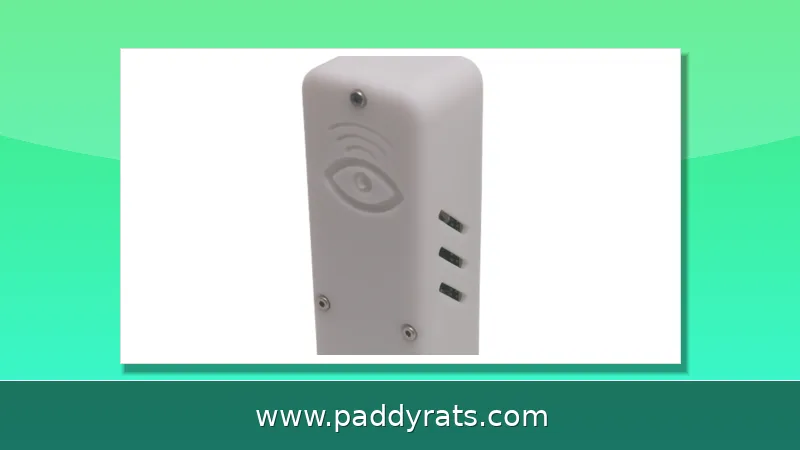
Wireless doorbells are cheap and easy to install, but they are also easy to confuse and, in the worst case, easy to jam. Here is how to tell accidental interference apart from a deliberate attack and what actually works.
How Does a Wireless Doorbell Signal Work?
Simply put: a wireless doorbell is just two parts of one radio system. The push button near your door is a transmitter and it runs on batteries, the chime in your house is actually a receiver. You hit the button and it sends out a brief transmission on a specific frequency; that signal is heard by your receiver, which then plays the tone. A lot of manufacturers construct doorbells in the 300MHz to 433MHz band because these radios are low-cost, lower-power and punch through walls great. One example is operating at 315 MHz. Both actually talk on one of a number of sub-frequencies or channels within that band, which is why the two doorbells from different brands tend not to mess with each other.
That narrow channel design is also the weakest link. The FCC only allow specific frequency bands to be used publicly, and the band dedicated at around 300MHz up on unlicensed devices is completely filled with stuff like pieces of garage openers that a person forgot in their house (the range isn't far), weather stations, remote outlets and your neighbors doorbell. The receiver has no way of identifying which signal belongs to the transmitter as it is said multiple transmitters can land on a single channel. It just hears a trigger that looks correct, and it rings. Learning this transmitter-receiver pair is the basis of every fix below (with 99.9% of unintended false rings being due to a channel collision rather than an equipment problem).
Why Does My Doorbell Ring on Its Own?
This is almost always interference, not a ghost — random chiming. Here's why. Since most wireless doorbells are built to a price point, manufacturers would rather have the beacons transmit in the 300MHz to 433MHz band — as far from licensed commercial radio bandwidths as you can get while still delivering signals. The FCC only allows certain chunks of that spectrum to be used by the public, and your doorbell is actually just a small sub-frequency (or channel) within it, so it doesn't take much for devices in this domain to trip over each other. The incoming signal then makes its way to your chime receiver and appears similar enough to a button press that it causes the chimeto ring as well, when an adjacent device transmits on the same frequency or channel. The ones I encounter most-in-practice are a neighbor's doorbell of the same model, wireless garage remote, baby monitor or cheap Qingjiang RF remotes from a ceiling fan. Spoiled gear can manage it as properly, which is why the trouble frequently vanishes when a neighbor replaces with an aged device. The symptom itself is very characteristic with the alarm going off outside of a normal schedule, sometimes in batches and pressing the button still works properly. That last detail is important, because it would imply that the transmitter and receiver are paired up correctly but there is outside noise — not broken hardware.
There's a more insidious, purposeful version of this problem that has cyber security experts concerned. Wi-Fi Jammer-Floods the 2.4GHz or 5GHz band with powerful interference creating too much noise for devices in range to transmit or receive data Even though that probably won't make a 315 MHz chime ring—totally different frequency—but it can knock out your Wi-Fi video doorbell in less than the time from when someone arrives to step onto your property to you getting an alerting sound on phone of motion, live view and cloud recording before you even are aware somebody is at/near it! We break the two scenarios down in the table below so that you can diagnose your situation before spending any money.
| Scenario | What's Happening | Typical Symptom | Usual Fix |
|---|---|---|---|
| Accidental interference | A neighbor's device transmits on the same frequency as your doorbell | Chime rings randomly, with no one at the door | Change the privacy codes or channel selectors on the receiver and transmitter |
| Deliberate Wi-Fi jamming | A jammer floods the 2.4GHz or 5GHz band with strong noise | Wi-Fi doorbell drops offline; no motion alerts, live view, or cloud recording | No complete defense; wired PoE cameras and local storage are the real countermeasures |
| Symptom | Likely cause | First fix |
|---|---|---|
| Chime rings randomly, button still works | Channel collision with a neighbor's device | Change privacy codes on receiver and transmitter |
| Video doorbell goes offline, returns later | Wi-Fi congestion or interference | Switch to 5GHz, move the router |
| Camera drops offline during a break-in | Deliberate Wi-Fi jamming | Local storage plus wired PoE cameras |
| Chime rings when the microwave runs | 2.4GHz band noise | Relocate router or doorbell receiver |
That distinction is arguably the most important part of this guide, as these two problems look exactly alike when you turn to your couch — the chime rings or it doesn't ring at all — but demand an entirely different resolution. It's free, takes a few minutes with a small screwdriver and entirely prevents interference from your neighbor's doorbell or garage remote line-sharing the same frequency. But privacy codes are utterly useless against a criminal holding jammers outside your door. Jamming is an attack vector, not a compatibility problem you can out-configure; the second half of this guide takes it on as such — detection and hardening with brutal honesty regarding what's possible.
How to Change Privacy Codes to Stop Doorbell Interference
Privacy codes, sometimes called channel selectors are the most powerful free solution around for phantom activations. You'll find either a small bank of dip switches or perhaps just a set of jumper pins on the back side [of other] push buttons and also in/on their associated chime receiver, that you can easily program to match. The pair must have matching code on both ends. Since your neighbor's unit is likely still on the factory default, changing yours to any other combination immediately puts you off of his shared channel.
Resetting the privacy codes on a wireless doorbell is a pretty quick job — most homeowners can knock it out in about ten minutes. First, cut the power to the chime or pull it off the wall, so you're not poking around a live circuit. Then pop open the button housing and flip the little switches inside to a new pattern. Once the transmitter is set, you have to mirror that exact same pattern on the receiver — if the two don't match, the chime won't make a peep. Put the power back on and press the button to make sure it still works. If your doorbell uses a digital pairing button instead of physical switches, the process looks a bit different: you hold the pair button on the receiver while pressing the transmitter, then follow the manual for your model. And if some third device later turns up on your new channel, just go through the code change again. One more tip — take a photo of the final switch positions, so the next battery swap doesn't wipe out all your work.
What Is Wi-Fi Jamming and How Does It Affect Doorbells?
Wi-Fi jamming is not to be confused with your neighbor's doorbell accidentally tripping yours — it's intentional radio interference directly targeting the band that your network operates on. A jammer pipes high-powered noise into 2.4GHz, 5GHz or both bands and that noise overpowers the good signals your devices need to function so they can no longer communicate with each other. The fallout quickly apparent on video doorbells: no motion alerts, live feed or cloud uploads, often within seconds of the device being powered up. The practical reality is grim. Several Ring community members have pointed out quite candidly, that once intentional jamming has begun… in the heat of the moment there is not much one can do to stop it and essentially wired cameras are really the only true solution.
In previous years, this was little more than a distant hypothetical. U.S. Customs and Border Protection is reporting a nearly 80% increase in the seizure of signal jammers since 2021, which suggests this hardware is out there and being moved in volume. Last June, the Department of Homeland Security linked jamming devices to a series of bank robberies in Vermont while officers collected equipment for Jammer mode following an attempted jewelry store robbery in La Verne, California. Back at home, LA leaders and law enforcement had been sounding alarms for a year that burglars were using Wi-Fi jammers to cripple camera systems before they entered. The playbook seldom varies: disable signal first, then target a home or business whose cameras have gone dark—many times before anyone catches on that the feed has dropped.
How to Detect a Wi-Fi Jammer Near Your Home
A jammer doesn't announce itself, but it does leave a trail your network can pick up on. The telltale sign is a sudden, simultaneous dropout of several Wi-Fi devices that were humming along just fine moments earlier—especially if everything snaps back the second a strange vehicle rolls away from your curb. That timing pattern is hard to explain any other way; ordinary congestion or a router hiccup rarely knocks several gadgets offline at once and then fixes itself on cue. A monitoring tool like Fingbox helps here, because it watches the devices you've registered and pings you the moment one disappears from the network, turning a silent outage into a notification on your phone. Signal-checking apps are useful too: by tracking RSSI, packet loss, and latency, they can show you a curtain of noise sitting exactly where a clean signal used to be.
RSSI, or received signal strength indicator, is the number to watch. Values around -30 dBm mean you are standing next to the router; -67 dBm is generally the minimum for reliable streaming and video; anything below -70 dBm is a weak zone where a camera will stutter or drop. If your doorbell normally sits at -55 dBm and suddenly reads -85 dBm while nothing in your home changed, something external is interfering. Document the readings with timestamps, because a pattern of outages at the same time each evening is far more useful than a single bad number when you report the problem.
How to Prevent Wi-Fi Jamming at Home
No consumer setup is truly bulletproof against a determined jammer, but the goal here is simple: make your home such a hassle to attack that a criminal moves on to an easier target. The first move is band selection. Most inexpensive jammers flood only the 2.4GHz spectrum, so switching your cameras and doorbells over to 5GHz — and turning on automatic band-switching if your router supports it — pulls your devices out of the most common attack path entirely. Just keep in mind the trade-off: 5GHz is harder to jam, but it doesn’t travel as far and struggles more with walls and floors. That’s why placement matters so much. Put the router somewhere central and elevated, with as clear a line of sight as possible to each device, and keep it away from dense materials like brick or concrete and away from electronics that throw off their own signals. On the security side, lock things down with WPA3 encryption and strong, unique passwords rather than the default ones that ship with the hardware. Finally, add local storage — a memory card in the camera itself — so recording continues even while the connection is down, then uploads automatically once Wi-Fi comes back. Even a successful jammer can’t erase footage it never had to transmit.
For the strongest protection, reduce your dependence on wireless entirely. Wired and PoE cameras are immune to Wi-Fi jamming because they carry both power and data over Ethernet cable, though running that cable is real work. Adding directional or adaptive antennas and multiple access points improves resilience and coverage. Microwave ovens can cut Wi-Fi speeds roughly in half while running, so keep the router away from the kitchen. Wi-Fi 6 (802.11ax) handles high-density environments better than older standards, which helps when many neighbors share the airwaves.
What Materials Block a Wireless Doorbell or Wi-Fi Signal?
Physical obstructions matter as much as channel settings. Metal reflects electromagnetic waves and blocks signals almost completely, which is why metal doors, ductwork, and foil-lined insulation are notorious dead zones. Concrete walls, plaster with metal lath, ceramic tile, Low-E or metallic-tinted glass, mirrors, and dense wood furniture all weaken Wi-Fi to varying degrees. Drywall has only a small impact on its own, but that loss adds up across several walls between the router and a doorbell.
A Faraday cage takes this principle to its logical extreme: fine metal mesh or solid metal on every wall, window, floor, and ceiling, joined with no gaps, will block signals in or out. It works, and it is impractical for most homes, since it also blocks cell service and emergency calls. For everyday purposes, use the table below as a rough guide to how common materials affect your signal, then position equipment accordingly rather than rebuilding your house.
| Material | Effect on signal |
|---|---|
| Metal doors, ductwork, foil insulation | Blocks almost completely |
| Concrete, brick, metal lath plaster | Strong weakening |
| Low-E or metallic-tinted glass, mirrors | Moderate to strong weakening |
| Ceramic tile, dense wood furniture | Moderate weakening |
| Drywall | Slight weakening per wall |
Are Wi-Fi and Cell Jammers Legal to Own?
No. According to the FCC, federal law prohibits the operation, marketing, or sale of any jamming equipment that interferes with authorized radio communications, including cellular and Personal Communication Services, police radar, and Global Positioning Systems. There are no exemptions for use in a business, classroom, residence, or vehicle, and even local law enforcement agencies do not have independent authority to deploy jamming equipment. Both cell and Wi-Fi jammers are illegal to own and operate in the United States.
If you suspect a neighbor has installed a jammer, the practical path is documentation rather than confrontation. Log the times and dates of outages, note which devices drop, and file a complaint with the FCC; complaints have historically been passed along to the FTC. Keep in mind that a jammer strong enough to take down your cameras will also disrupt your neighbors' Wi-Fi and cell service, which is exactly why the equipment is banned. Until enforcement catches up, local storage, wired cameras, and 5GHz are the defenses that actually hold up.
Frequently Asked Questions
Why does my wireless doorbell ring on its own?
Your doorbell button is a wireless transmitter talking to a receiver on a set frequency. If a neighbor's device runs on the same frequency or channel, the signals interfere and your chime rings randomly. Most wireless doorbells use privacy codes or channel selectors so you can change the operating frequency and stop the false triggers.
Can a Wi-Fi jammer knock a Ring doorbell offline?
Yes. Wi-Fi jammers flood the 2.4GHz or 5GHz band with strong signals, overwhelming the connection so devices cannot send or receive data. For video doorbells this means lost motion alerts, no live feed, and no cloud recording. Jammers are illegal in most countries, but the equipment is cheap and hard to stop.
How can I stop Wi-Fi jamming of my doorbell?
Switch to 5GHz since most jammers target 2.4GHz, use WPA3 encryption with strong unique passwords, add local storage so the device records while offline, and consider wired PoE cameras. No system is completely immune, but these steps reduce your vulnerability and keep footage when the network drops.
What materials block a wireless doorbell or Wi-Fi signal?
Metal reflects electromagnetic waves and blocks signals almost completely, including metal doors, ductwork, and foil-lined insulation. Concrete walls, plaster with metal lath, ceramic tiles, Low-E or metallic-tinted glass, mirrors, and dense wood furniture also weaken or block Wi-Fi. Drywall has a small impact that adds up across many walls.