How to Block GPS Signal on iPhone in 2026: Settings, Airplane Mode, and Faraday Bags
You can cut off iPhone location tracking three ways: kill Location Services in iOS settings, restrict access app by app, or physically block the GPS signal with a Faraday bag. Here is what each method actually does in 2026.
What Does Blocking GPS on an iPhone Actually Do?
First, when someone searches how to block a GPS signal on an iPhone that can refer to three different thing and separating them before touching any setting helps. The first is the application of disabling Location Services, which will revoke GPS tracker privileges for all apps on any device. The second is by limiting access to each app, so a maps app still functions while the shopping one never even sees your latitude and longitude. The third is to physically block the signal itself, which is the only trick that entirely prevents an iPhone’s GPS chip from getting a singular satellite feed at all.
Location Services, it is good to know what they actually use. The system will use GPS and Bluetooth (when available), as well as crowd-sourced Wi-Fi hotspots, plus positions of cellular towers to get a rough estimate where the device is located; according to Apple's support documentation. However, just disabling GPS itself may not necessarily stop location estimation either since Wi-Fi and cell triangulation can land you within a few dozen feet in cities. GPS itself is a receive-only technology, the phone listens for microwave signals from satellites and once it hears enough e.g. four or more then timing & trilateration gives its position which can be then reported (position/velocity) over the cellular network.
How to Turn Off Location Services and GPS on iPhone Step by Step
The nuclear option is tucked away under Settings, then Privacy & Security, then Location Services. First, make sure the master Location Services switch is on so the menu actually responds when you tap it, then flip it off and hit Turn Off when iOS asks you to confirm. According to Apple's support page on turning Location Services and GPS on or off, published January 14, 2026, this kills location access for every app at once, including any GPS tracker permissions you'd granted before. I've done this right before a long drive, and the tradeoff shows up fast: weather apps can't pull your local forecast anymore, ride-hailing apps make you type in an address, and Find My just stops updating altogether.
Instead of blanket shutdowns, another iOS 17 feature lets you reset every location permission back to factory settings if you're looking for a fresh start. Settings → General → Transfer or Reset iPhone (or just 'Reset')→ Reset Location & Privacy It does not delete your data, but every app that previously had Always access must survey again. This is the option I recommend after installing a whole lot of new apps because permission creep is real: an app you agreed to access While Using App 2 years ago might be asking for background location each time it updates.
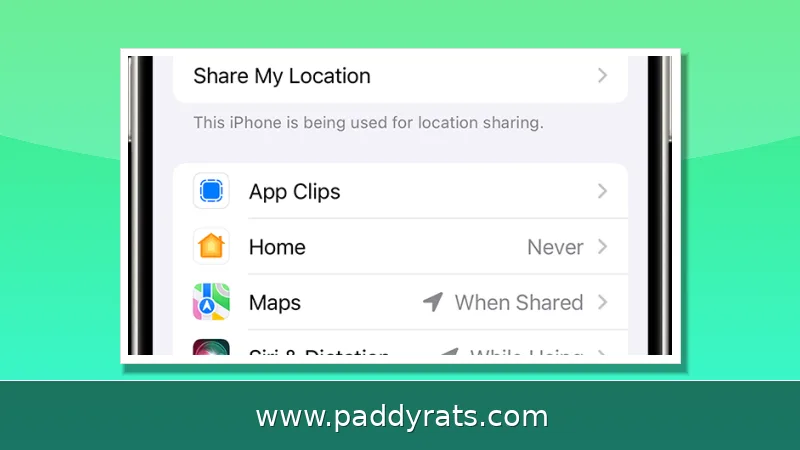
There is one more layer above the app list. The Location Services menu has Share My Location, which determines if friends and family can see you in Find My and Messages. It will turn that sharing off but not disable GPS for your apps, so you still have navigation and everything else while your contacts no longer see a dot on the map. That distinction confuses a lot of people; many assume that turning off Share My Location, turns GPS capability off, and it doesn't.
How to Block Location Per App and Turn Off Precise Location
Most iPhone users will want to start off with per-app control, as this keeps the apps that are useful alive and well while slamming shut down on ones that have no business knowing where you hope. Open Settings, tap Privacy &Amp; Security, then Location Services and scroll to the app. Tap it. You have a non-exhaustive list of permission levels, and what the right answer is varies completely based on app function.
| Permission | What it means | Best for |
|---|---|---|
| Never | App can never access location, even in the background | Shopping, social, and utility apps that do not need it |
| Ask Next Time Or When I Share | iOS prompts you each time the app wants location | Apps you use rarely and want to audit |
| While Using the App | Access only when the app is open on screen | Maps, delivery, and ride-hailing |
| Always | Background access, including when the app is closed | Find My, family safety, and fitness tracking |
Precise Location is a new toggle within the permission screen of each app, released in iOS 14 and later. With it off, the app gets only an estimated location about a neighborhood-size circle, not an actual street address. That is good enough for a weather app or local news feed. It will make turn-by-turn mapping for a navigation app obviously worse, so leave it on in the few places you need and then put it off elsewhere. I have had Precise Location disabled for all my social and shopping apps on my own phone, and I was fine without it.
Instead, iOS provides you with up-to-the-minute updates on whoever is tuning in. When an application currently has access to your location, a blue status bar message shows up along with this small arrow pamphlet that appears in the standing-up one level or Control center. If a purple arrow appears, it indicates the app has used your location in recent times; if greyed out and shown still then its been used within time range of 24 hours. You wouldn't have known that if in the background the app you thought was sleeping had suddenly become active with a purple arrow or grey from some key element, until now: see one then get to its permission screen and demote it.
Does Airplane Mode Turn Off GPS on an iPhone?
This is one of the longest-standing myths in iPhone privacy and truthfully, it depends on your version of iOS. A wikiHow community answer notes that prior to 8.3, if Airplane Mode is enabled on an iPhone running version 8.2 or earlier (unless it's a phone from Verizon), GPS turned off—ideally via combination with other radios—but in newer versions of the OS, it says "Airplane mode keeps GPRS and visualization by default." Airplane Mode will not actually block GPS for you today, because by 2026 there virtually no iPhone in active use still running a version that old.
But Airplane Mode is not entirely useless for privacy. This is not entirely true: physical-blocking vendor SLNT describes Airplane Mode as refusing the GPS signal and interrupting the phone's connection with a network provider, but it kills off both cellular & Wi-Fi radios so your device cannot upload its position to a server or get assisted-GPS data that speeds up an answer. The GPS receiver still hears satellites and can figure out a location locally, but it has to work substantially harder to report that information. Airplane Mode is for when your threat model is a server logging where you are. If it is the phone knows wear were not.
For a definitive test, put the phone in Airplane Mode, open a maps app, and watch the location dot. In my experience it either fails to resolve or takes far longer to lock on, which is consistent with a receiver that is still listening but no longer getting network assistance. That is a meaningful difference, but it is not the same as blocking the signal.
How to Stop Sharing Your Location With Friends and Family
Location sharing is a separate permission from GPS, and it is the one most people actually want to switch off. Inside Settings, Privacy & Security, Location Services, tap Share My Location and toggle it off. This stops Find My and Messages from broadcasting your position to friends and family without touching the GPS permissions your own apps rely on. If you only want to hide from one person rather than everyone, open Find My, tap the People tab, select the contact, and choose Stop Sharing My Location instead.
Carrier family locator services are another channel worth auditing. AT&T and Verizon Wireless both offer Family Locator products that track line-level device location independently of Apple's system, and they are managed through the carrier account rather than iOS settings. If someone else pays for your line, they may be able to see your location there even after you have turned off Share My Location. Log into the carrier account and check which locator features are active, then disable them from the account level.
Finally, remember that a shared location is often granted once and then forgotten. The People list in Find My shows everyone currently receiving your position, so it is worth opening that list every few months and removing anyone you no longer want on it. It takes about thirty seconds and it is the single highest-value privacy habit I have kept.
Blocking Third-Party Tracking: Allow Apps to Request to Track and Apple Advertising
GPS is only one way an iPhone can be tied to you. Advertising identifiers are the other, and Apple gives you a switch for them. Reporting from the Associated Press in February 2025 walked through the flow: go to Settings, then Privacy & Security, then Tracking, and toggle Allow Apps to Request to Track off. New app requests are automatically denied, and apps are stopped from accessing the phone's ad identifier, which is the random string advertisers use to build a profile across apps.
There is a second switch most people never find. Under Settings, Privacy & Security, Apple Advertising, turn off Personalized Ads. This reduces the degree to which Apple's own advertising system tailors ads to your activity. Privacy advocates including Malwarebytes senior privacy advocate David Ruiz and Keeper Security CEO Darren Guccione have both argued that these identifier-level controls matter more than most users assume, because a persistent ad ID can link your behavior across apps even when each individual app has no location permission.
Android users have an equivalent control worth knowing about if you switch platforms: go to Settings, Privacy, Ads, and choose Delete Advertising ID. The naming differs but the idea is identical, and it is the closest thing to a one-tap anti-tracking switch on either operating system.
Faraday Bags and Physical Signal Blocking: What Actually Works
If you need the phone to be genuinely unable to determine its own position, software settings are not enough, because a device with Location Services off can still receive satellite signals and store a local position history. That is where physical blocking comes in. SLNT recommends phone bags with a built-in Faraday cage to block GPS tracking and go off the grid, and the principle is straightforward: a conductive enclosure stops radio waves from reaching the antenna.
The engineering detail matters if you want to build or evaluate one. GPS signals operate at roughly 1.2 to 1.5 GHz, which corresponds to a wavelength of about 20 centimeters. A conductive mesh only blocks effectively when the hole size is small relative to that wavelength, so a loosely woven fabric will leak. Buildings, tunnels, atmospheric interference, and solar flares can also disrupt GPS reception incidentally, which is why your phone sometimes loses its lock in a parking garage. A properly sealed Faraday bag is the portable version of that effect.
Before you rely on a bag, test it. Put the phone inside, close the seal, and try to call it from another line. If it rings, the enclosure is leaking and it will not stop GPS either. I keep a small pouch for meetings where I do not want a device reporting anything, and the call test has caught a worn seal more than once.
GPS Jammers: Why They Are Illegal and How They Differ From Spoofers
A GPS jammer is a small self-contained transmitter that conceals location by broadcasting radio signals on the same frequency as GPS. Geotab's article on the topic, dated July 8, 2025, describes the typical form factor: the device plugs into an automotive auxiliary power outlet, sits close to the GPS tracker you want to defeat, and generates interference over a radius of roughly 16 to 33 feet. Online listings include physical shields, Wi-Fi and Bluetooth jammers, remote control jammers, spy camera jammers, and drone jammers.
The technology was originally created by governments for military use. Other users, according to Geotab, include speeding drivers avoiding police detection, criminals covering vehicle thefts, and trucking fleet drivers hiding their location from employers. That list is why the legal exposure is severe. Jamming is illegal in many countries including the United States, Canada, and the United Kingdom. The U.S. Communications Act of 1934 outlawed marketing, sale, or use of these devices, and Canada's Radiocommunication Act prohibits importing, manufacturing, distributing, selling, possessing, and using them. Penalties in the U.S. can reach $100,000 or more in fines, plus imprisonment and loss of equipment.
Jamming and spoofing are frequently confused but do opposite things. A jammer emits radio frequency noise on the GPS frequency, so the device cannot receive satellite data and cannot determine location at all. A spoofer mimics real satellite signals, tricking the device into calculating a false position, which shows incorrect routes or locations. Jamming disrupts completely; spoofing deceives with fake data. For fleet operators, Geotab detects GPS jamming and alerts fleet managers in real time, which is a reminder that interference is visible to the other side even when it works.
The practical takeaway for a normal iPhone owner is simple. Do not buy a jammer: it is illegal, it can knock out GPS for everyone nearby including emergency services, and it is unnecessary for personal privacy. Settings, per-app restrictions, and a Faraday bag cover essentially every legitimate reason someone wants their iPhone to stop reporting where it is.
Frequently Asked Questions
How do I turn off GPS on my iPhone completely?
Open Settings, tap Privacy & Security, then Location Services. Toggle the Location Services switch off and tap Turn Off to confirm. This disables GPS and location access for every app on the device, though some apps may stop working properly without location data, and Wi-Fi and cellular positioning may still give a rough idea of where you are.
Does Airplane Mode turn off GPS on an iPhone?
It depends on the iOS version. iPhones running iOS 8.2 or earlier turned GPS off when Airplane Mode was enabled, while iPhones running iOS 8.3 or newer keep GPS on. Since virtually every iPhone in use in 2026 runs a much newer version, Airplane Mode cuts cellular and Wi-Fi reporting but does not stop the GPS receiver from listening to satellites.
Can I block GPS for one app but keep it on for others?
Yes. Go to Settings, tap Privacy & Security, then Location Services, scroll to the app, and tap it. Choose Never, Ask Next Time Or When I Share, While Using the App, or Always. You can also turn Precise Location on or off for that app, which limits it to an approximate neighborhood-level position instead of a street address.
What is the difference between GPS jamming and spoofing?
A GPS jammer emits radio frequency noise on the same frequency as GPS, preventing the device from receiving satellite data so it cannot determine location at all. A GPS spoofer mimics real satellite signals, tricking the device into calculating a false position and showing incorrect routes or locations. Jamming disrupts completely, while spoofing deceives with fake data, and jamming is illegal in the U.S., Canada, and the U.K.